Sunday, April 27, 2014

Git - Upload source code to GitHub using Git GUI

git logo
GitHub is a web-based hosting service for software development projects that use the Git revision control system. It is used to share code with other people and a GitHub account is free for open source projects. Following tutorial will show you how to setup and configure Git on your computer so you can upload code towards GitHub.

Git GUI Install

First let's start by going to the Git downloads page and download the Git installer for your operating system. In this tutorial we will use Windows.

git download page

Double click to run the downloaded '.exe' file and click Next keeping the default settings on the different installer steps. At the end click Finish and Git should be successfully installed.

git installer

Start the Git command processor by clicking on the Git Bash link inside the Git program group (Start>All Programs>Git). A bash window should appear as shown below.

git bash console

1) Configure Git

First thing that needs to be done is to setup some basic Git parameters like user name and email address. In order to do so enter following commands and replace the value between the quotes with your own values.
git config --global user.name "<user_name>"
git config --global user.email "<user_email>"
Shown below is the execution of the two commands.

configure git using git bash

In order to verify if the values are set correctly enter following command:
git config --list
The result is a list of configuration parameters as shown below.

verify git setup using git bash

2) Generating SSH keys

It is strongly recommend to use an SSH connection when interacting with GitHub. SSH keys are a way to identify trusted computers, without involving passwords. To generate a new SSH key pair, copy and paste the command below, making sure to substitute the email value between the quotes with your own.
ssh-keygen -t rsa -C "<user_email>"
When asked to 'Enter file in which to save the key' just press ENTER to continue. Then a passphrase is requested which acts as a password you need to enter each time you want to use your key with SSH. Enter your password twice and the result should be as shown below.

generate ssh keys using git bash

Locate the generated keys by going to the location as shown in the console output. In the above example the location is: 'C:\Users\source4code\.ssh'

ssh keys location

The 'id_rsa' file contains your private key and the 'id_rsa.pub' file contains your public key.

3) Configure GitHub

Create an account at GitHub and sign in. Add a new remote repository by clicking the + New repository button. Enter a repository name and check the Initialize this repository with a README checkbox so a 'README.md' is automatically added as shown below.

github create repository

Next step is to add the public SSH key to your GitHub account. To do so access the GitHub account settings by clicking on the wrench/screwdriver icon in the top right hand corner. Then on the left hand side menu click on the SSH keys link.

Click on the Add SSH key button in the top right hand corner. In the 'Title' text field enter a name for the public key that we will add (in the example below the name "test-repo" is used). Then open the 'id_rsa.pub' file that was generated in the previous section and copy paste the contents in the 'Key' text field as shown below. Save the SSH key by clicking the Add key button.
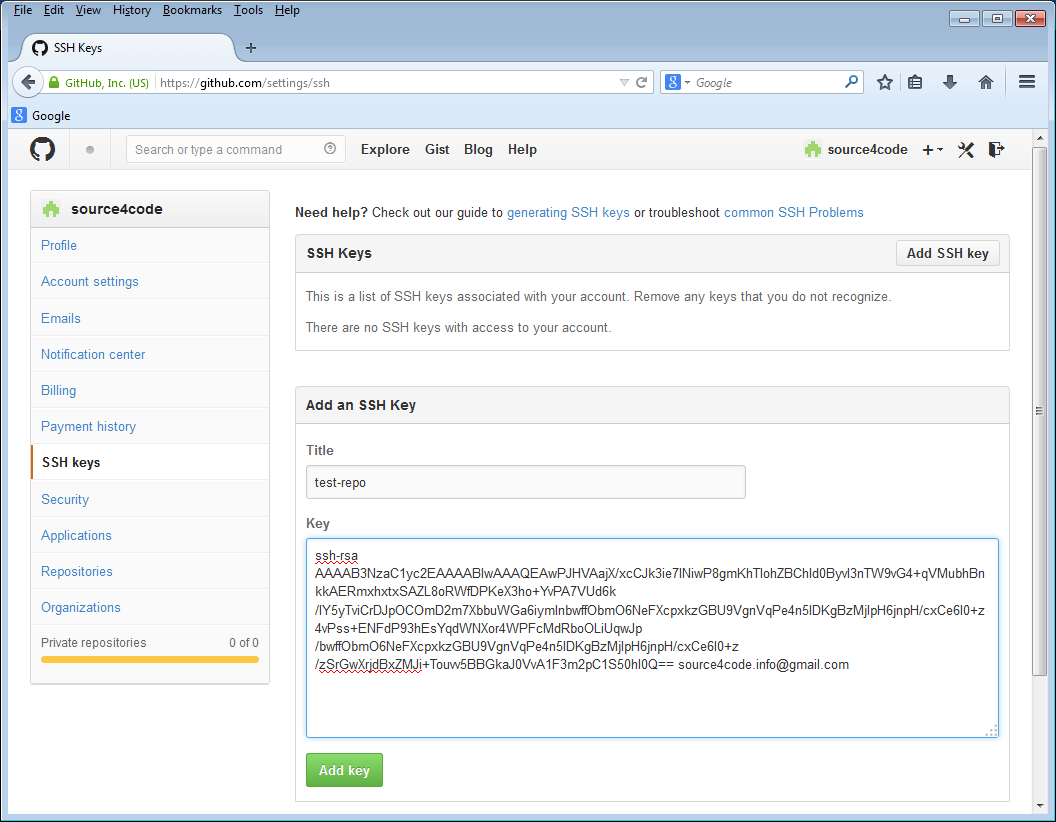
github add ssh key

The newly added key is part of the SSH keys that are associated with your account as shown below.
Note that the key fingerprint shown should be the same as the one that was printed during SSH keys creation in the previous section: 41:d7:ed:23:51:e0:ac:54:b4:52:6a:cf:b4:52:02
github ssh key fingerprint

4) Configure Git GUI

Start Git GUI by clicking on the Git GUI link inside the Git program group. Following window should appear.

git gui startup window

First thing to do is to create a new local Git repository. Click on the Create New Repository link and select a folder in which you would like to create a new local repository. In the example below the local repository is created at 'C:/source4code/code/test-repo'. Click the Create button to complete the repository creation.

git gui create new repository

A new window will open which shows the newly created Git repository.

git gui manage repository window

Next step is to add the remote Git repository at GitHub. Click on the Remote menu and select Add. A new window will pop-up in which a name for the remote repository and the location need to be added. In this example we will enter "test-repo" as name and "git@github.com:source4code/test-repo.git" as location as shown below.

git gui add new remote
The location for the remote GitHub repository can be found by logging into GitHub, selecting the repository to be added and then clicking on the SSH link at the bottom right-hand side of the screen.
github repository link

If the Fetch Immediately action in the popup window was left selected, the first thing Git GUI will do is fetch the content of the remote GitHub repository. Enter the passphrase of the SSH keys generated in the previous section and press OK. The result should be a success status as shown below. Click the Close button to finish.

git gui fetch repository

Git GUI Usage

Now that the remote repository was fetched we need to merge it with the local repository. Before this can be done, a local baseline is needed to merge with. Open the local repository location, in this example it was 'C:/source4code/code/test-repo' and add a file 'test1.txt'.

add file to git repository

Switch back to Git GUI and press the Rescan button. The added file should now appear under the 'Unstaged Changes' section. Then click on the Stage Changed button to tag the added file to be part of the files on which we will create a baseline and click Yes to confirm the untracked file. The file should now appear in the 'Staged Changes' section as shown below.

git gui staged changes
You can move files between the 'Unstaged Changes' and 'Staged Changes' section by using the Commit menu.
Add an initial commit message in the corresponding text box as shown below.

git gui commit message

Press the Commit button. The file will disappear from the 'Staged Changes' section and at the bottom of the screen a 'Created commit' message should appear.

git gui commit

Now the local and remote baseline need to be merged. Click on the Merge menu and select Local Merge. A new window will pop-up that shows the possible baselines that can be merged with the local master baseline.
If the remote 'test-repo/master' does not show as below, restart Git GUI!
git gui merge into master

Click on the Merge button and a success status should be appear which shows that the 'README.md' from the remote repository was successfully added.

git gui merge successful

The last thing left to do is to push the merged local baseline to GitHub. In order to do so select the Remote menu and click on the Push menu item. A new window is shown which shows the local master that will be pushed to the remote 'test-repo'.

git gui push branches

Click the Push button and enter the passphrase of the SSH keys. A success message should be shown. Close the message by clicking on the Close button and open your GitHub account. Select your repository and the 'test1.txt' file should be present as shown below.
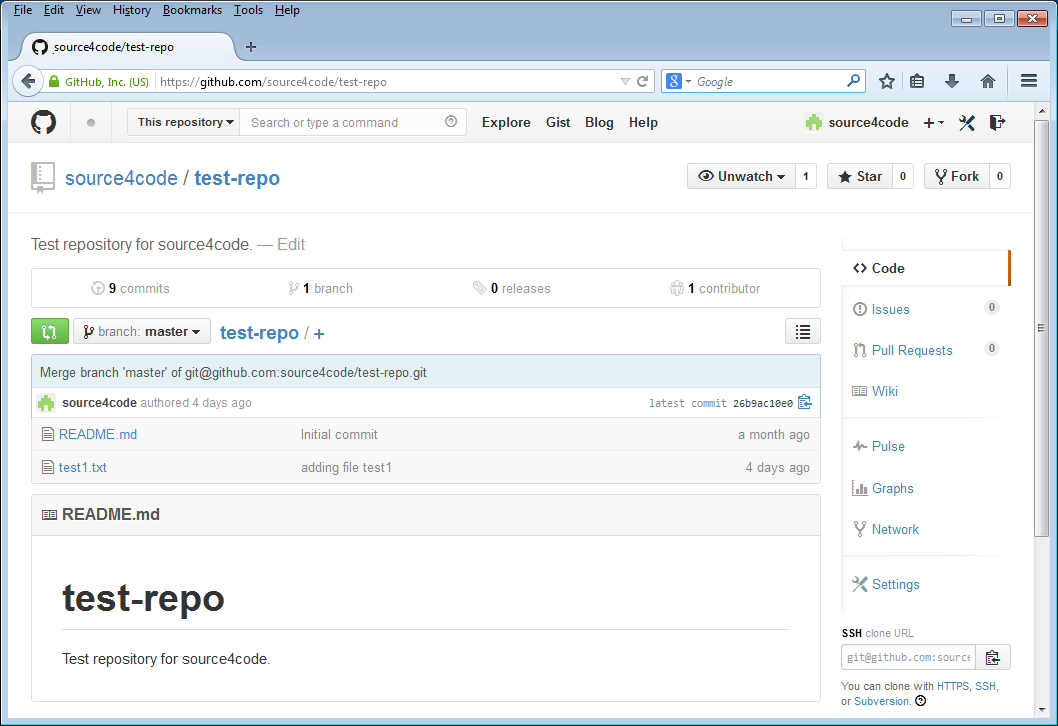
github repository files

From now on you can add/change files on your local repository that can then be pushed to GitHub once committed.


This concludes setting up Git GUI so files can be uploaded to GitHub. If you found this post helpful or have any questions or remarks, please leave a comment.

Saturday, April 26, 2014

Blogger - Setup SyntaxHighlighter

syntaxhighlighter logo
Blogger, the blog-publishing service from Google, does not provide a syntax highlighter out of the box. This means you need to resort to third party solutions in order to have syntax highlighting in your posts. One of those solutions is the awesome syntax highlighter created by Alex Gorbatchev which is called SyntaxHighlighter. The big advantage of this highlighter is that it is purely written in JavaScript and as a result it does not need a server side component and can be easily integrated into blogger. Following tutorial will detail how to setup and use SyntaxHighlighter on your Blogger blog.

SyntaxHighlighter Install

First thing to do is to open the dashboard of your Blogger blog as shown below. On the left hand side find the menu that says Template and click on it.

blogger template

This will open the template page of your blog. Click on the button that says Edit HTML in order to open up the HTML editor as shown below.

blogger edit html

Click anywhere inside the editor window and press CTRL+F. A search box should now appear in the upper right hand corner as shown below. In the search box enter "</head>" (without quotes) and press ENTER.
 
blogger edit html search

The editor window will now jump the end of the HTML header tag where we will add the needed style sheets and JavaScript files. The SyntaxHighlighter configuration consists out of four parts:
  1. The core files
  2. The SyntaxHighlighter theme
  3. The specific brush(es) needed for the blog
  4. The configuration script

1) The core files

The core files consist out of the following JavaScript file and style sheet:
<script src="http://alexgorbatchev.com/pub/sh/current/scripts/shCore.js" type="text/javascript"></script>
<link href="http://alexgorbatchev.com/pub/sh/current/styles/shCore.css" rel="stylesheet" type="text/css"></link>

2) The SyntaxHighlighter theme

There are a number of themes available for SyntaxHighlighter, for the complete list please check following link. The style sheet below is the default theme.
<link href="http://alexgorbatchev.com/pub/sh/current/styles/shThemeDefault.css" rel="stylesheet" type="text/css" />

3) The specific brush(es) needed for the blog

Depending on the structured language that needs to be highlighted, the corresponding brush needs to be imported. For a complete list of all available brushes please check following link. In this example we will add the brushes for 'Java' and 'XML'.
<script src="http://alexgorbatchev.com/pub/sh/current/scripts/shBrushJava.js" type="text/javascript"></scrip>
<script src="http://alexgorbatchev.com/pub/sh/current/scripts/shBrushXml.js" type="text/javascript"></script>
Only add the needed brushes as for each page the brushes are retrieved from alexgorbatchev.com (the SyntaxHighlighter site) as this increases your blog page load times!

4) The configuration script

After all needed dependencies have been added we need to enable a specific mode for Blogger and instruct SyntaxHighlighter to highlight all code blocks found on the web page. This is done by adding a JavaScript snippet as shown below.
<script language="javascript" type="text/javascript">
SyntaxHighlighter.config.bloggerMode = true;
SyntaxHighlighter.all();
</script>


The complete script to be inserted in the Blogger template is shown below. Copy and paste right before the '</head>' tag as shown on the screenshot.
<!-- 'SyntaxHighlighter' additions START -->
<script src="http://alexgorbatchev.com/pub/sh/current/scripts/shCore.js" type="text/javascript"></script>
<link href="http://alexgorbatchev.com/pub/sh/current/styles/shCore.css" rel="stylesheet" type="text/css" />
<link href="http://alexgorbatchev.com/pub/sh/current/styles/shThemeDefault.css" rel="stylesheet" type="text/css" />
<script src="http://alexgorbatchev.com/pub/sh/current/scripts/shBrushJava.js" type="text/javascript"></script>
<script src="http://alexgorbatchev.com/pub/sh/current/scripts/shBrushXml.js" type="text/javascript"></script>

<script language="javascript" type="text/javascript">
SyntaxHighlighter.config.bloggerMode = true;
SyntaxHighlighter.all();
</script>
<!-- 'SyntaxHighlighter' additions END -->

blogger save template

Click the Save template button to save the changes made to your Blogger template. This concludes the setup, in the next section will see how to use SyntaxHighlighter.

SyntaxHighlighter Usage

In order to use SyntaxHighlighter we need to wrap the section to be highlighted with an XML tag called <pre>. This tag has one required parameter called 'brush' which is the same brush that was added in section 3 of the above setup.

For this example we will add a HelloWorld Java class to a <pre> tag with a 'Java' brush and a Hello World XML file to a <pre> tag with a 'XML' brush. Copy the below code and paste it inside a Blogger post as shown.
Make sure all right angle brackets within the <pre> tags are HTML escaped, in other words all "<" (less than character) must be replaced with "&lt;" (without quotes, as highlighted below)!
<pre class="brush: java">
public class HelloWorld {

public static void main(String[] args) {
System.out.println("Hello World!");
}
}
</pre>

<pre class="brush: xml">
&lt;?xml version="1.0" encoding="UTF-8" ?>
&lt;text>Hello World!&lt;/text>
</pre>

blogger syntaxhighlighter syntax

Save and publish the page and the result should look like:
syntaxhighlighter example

SyntaxHighlighter Options

In addition to the mandatory 'brush' parameter, the <pre> tag has a number of optional parameters. For example it is possible to highlight one or more lines to focus the reader's attention by adding the 'highlight' parameter as shown below. The full list of available parameters can be found here.
<pre class="brush: java; highlight: [3,4,5]">
public class HelloWorld {

public static void main(String[] args) {
System.out.println("Hello World!");
}
}
</pre>

The result of above snippet:
syntaxhighlighter highlight example


This concludes setting up SyntaxHighlighter on Blogger. If you found this post helpful or have any questions or remarks, please leave a comment.

Saturday, April 12, 2014

JSF - PrimeFaces Hello World using Jetty and Maven

PrimeFaces is an open source component library for JavaServer Faces (JSF). It provides a collection of mostly visual components (widgets) that can be used by JSF programmers to build the UI for a web application. An overview of these widgets can be found at the PrimeFaces showcase. The following post illustrates a basic example in which we will configure, build and run a Hello World PrimeFaces example using Jetty and Maven.


Tools used:
  • JSF 2.2
  • PrimeFaces 5.1
  • Jetty 8
  • Maven 3

First let's look at the below Maven POM file which contains the needed dependencies for our project. At the bottom of the dependencies list we find the PrimeFaces library. As PrimeFaces is built on top of 'JavaServer Faces' we also need to include the JSF dependencies. JSF is a component based Model–view–controller (MVC) framework which is built on top of the 'Servlet API' so we also need to include the Servlet dependency.

In order to run our example we need a servlet container (the component of a web server that interacts with Java servlets). There are a number of servlet containers implmenetations available, in the below example we will use Jetty which is a non-commercial pure Java-based HTTP (Web) server and Java Servlet container from the Eclipse Foundation. There is a Jetty Maven plugin which allows launching a Jetty instance from command line using Maven which has been configured so that the HTTP listener port is set to '9090' and the context path is set to 's4c'.
<?xml version="1.0" encoding="UTF-8"?>
<project xmlns="http://maven.apache.org/POM/4.0.0" xmlns:xsi="http://www.w3.org/2001/XMLSchema-instance"
xsi:schemaLocation="http://maven.apache.org/POM/4.0.0 http://maven.apache.org/xsd/maven-4.0.0.xsd">
<modelVersion>4.0.0</modelVersion>

<groupId>info.source4code</groupId>
<artifactId>jsf-jetty-primefaces-helloworld</artifactId>
<version>1.0</version>
<packaging>war</packaging>

<name>JSF - PrimeFaces Hello World using Jetty and Maven</name>
<url>http://www.source4code.info/2014/04/jsf-primefaces-hello-world-jetty-maven.html</url>

<properties>
<project.build.sourceEncoding>UTF-8</project.build.sourceEncoding>
<java.version>1.6</java.version>

<junit.version>4.12-beta-2</junit.version>
<servlet.version>3.0.1</servlet.version>
<jsf.version>2.2.8-02</jsf.version>
<primefaces.version>5.1</primefaces.version>

<maven-compiler-plugin.version>3.1</maven-compiler-plugin.version>
<jetty-maven-plugin.version>8.1.14.v20131031</jetty-maven-plugin.version>
</properties>

<dependencies>
<!-- JUnit -->
<dependency>
<groupId>junit</groupId>
<artifactId>junit</artifactId>
<version>${junit.version}</version>
<scope>test</scope>
</dependency>
<!-- Servlet -->
<dependency>
<groupId>javax.servlet</groupId>
<artifactId>javax.servlet-api</artifactId>
<version>${servlet.version}</version>
</dependency>
<!-- JSF -->
<dependency>
<groupId>com.sun.faces</groupId>
<artifactId>jsf-api</artifactId>
<version>${jsf.version}</version>
</dependency>
<dependency>
<groupId>com.sun.faces</groupId>
<artifactId>jsf-impl</artifactId>
<version>${jsf.version}</version>
</dependency>
<!-- PrimeFaces -->
<dependency>
<groupId>org.primefaces</groupId>
<artifactId>primefaces</artifactId>
<version>${primefaces.version}</version>
</dependency>
</dependencies>

<build>
<plugins>
<plugin>
<groupId>org.apache.maven.plugins</groupId>
<artifactId>maven-compiler-plugin</artifactId>
<version>${maven-compiler-plugin.version}</version>
<configuration>
<source>${java.version}</source>
<target>${java.version}</target>
</configuration>
</plugin>
<plugin>
<groupId>org.mortbay.jetty</groupId>
<artifactId>jetty-maven-plugin</artifactId>
<version>${jetty-maven-plugin.version}</version>
<configuration>
<webAppConfig>
<contextPath>/s4c</contextPath>
</webAppConfig>
<connectors>
<connector
implementation="org.eclipse.jetty.server.nio.SelectChannelConnector">
<port>9090</port>
</connector>
</connectors>
</configuration>
</plugin>
</plugins>
</build>
</project>

Next is the HelloWorld class which is a simple POJO (Plain Old Java Object) that will provide data for the PrimeFaces (JSF) components. It contains the getters and setters for first and last name fields as well as a method to show a greeting.

In JSF, a class that can be accessed from a JSF page is called Managed Bean. By annotating the HelloWorld class with the @ManagedBean annotation it becomes a Managed Bean which is accessible and controlled by the JSF framework.
package info.source4code.jsf.primefaces;

import javax.faces.bean.ManagedBean;

@ManagedBean
public class HelloWorld {

private String firstName = "John";
private String lastName = "Doe";

public String getFirstName() {
return firstName;
}

public void setFirstName(String firstName) {
this.firstName = firstName;
}

public String getLastName() {
return lastName;
}

public void setLastName(String lastName) {
this.lastName = lastName;
}

public String showGreeting() {
return "Hello" + " " + firstName + " " + lastName + "!";
}
}

The web page that will be shown is a standard JSF page as defined below. It contains a number of PrimeFaces components which include two <p:inputText> fields, that will be used to enter a first and last name, surrounded by a <p:panel>. There is also a <p:dialog> component that shows a greeting message. The dialog is triggered by a <p:commandButton> that is part of the panel.

In order to use the PrimeFaces components, following namespace needs to be declared: xmlns:p="http://primefaces.org/ui
<?xml version="1.0" encoding="UTF-8"?>
<!DOCTYPE html PUBLIC "-//W3C//DTD XHTML 1.0 Transitional//EN" "http://www.w3.org/TR/xhtml1/DTD/xhtml1-transitional.dtd">
<html xmlns="http://www.w3.org/1999/xhtml" xmlns:h="http://java.sun.com/jsf/html"
xmlns:f="http://java.sun.com/jsf/core" xmlns:ui="http://java.sun.com/jsf/facelets"
xmlns:p="http://primefaces.org/ui">

<h:head>
<title>Hello World</title>
</h:head>

<h:body>
<h:form>

<p:panel header="Hello World">
<h:panelGrid columns="2" cellpadding="4">
<h:outputText value="First Name: " />
<p:inputText value="#{helloWorld.firstName}" />

<h:outputText value="Last Name: " />
<p:inputText value="#{helloWorld.lastName}" />

<p:commandButton value="Submit"
update="display" oncomplete="PF('dlg').show()" />

</h:panelGrid>
</p:panel>

<p:dialog header="Greeting" widgetVar="dlg" modal="true"
resizable="false">
<h:panelGrid id="display" columns="1"
cellpadding="4">
<h:outputText value="#{helloWorld.showGreeting()}" />

</h:panelGrid>
</p:dialog>

</h:form>
</h:body>
</html>

Java web applications use a deployment descriptor file to determine how URLs map to servlets and other information. This file is named 'web.xml', and resides in the application's WAR under the 'WEB-INF' directory. The below 'web.xml' contains the definition of the FacesServlet servlet class that will be used to manage the request processing lifecycle of our web page which contains JSF components. The page is mapped to the servlet by defining a mapping for all files ending with '.xhtml'.
Note that MyFaces and Mojarra register a servlet context listener for the startup configuration via the TLD file of the JSF core taglib. Jetty 8 uses the Glassfish JSP implementation which requires the TLD files to be on the classpath of the container which is not the case if the application is started via the Jetty Maven Plugin. In order to fix this the easiest solution is to simply add the config listener to the web.xml. For more information check this blog post.
<?xml version="1.0" encoding="UTF-8"?>
<web-app xmlns:xsi="http://www.w3.org/2001/XMLSchema-instance"
xmlns="http://java.sun.com/xml/ns/javaee" xmlns:web="http://java.sun.com/xml/ns/javaee/web-app_3_0.xsd"
xsi:schemaLocation="http://java.sun.com/xml/ns/javaee http://java.sun.com/xml/ns/javaee/web-app_3_0.xsd"
version="3.0">

<display-name>PrimeFaces HelloWorld Example</display-name>

<!-- Define the JSF listener class when using the Jetty Maven Plugin
with Jetty8 -->
<listener>
<listener-class>com.sun.faces.config.ConfigureListener</listener-class>
</listener>

<!-- File(s) appended to a request for a URL that is not mapped to a
web component -->
<welcome-file-list>
<welcome-file>helloworld.xhtml</welcome-file>
</welcome-file-list>

<!-- Define the JSF servlet (manages the request processing lifecycle
forJavaServer) -->
<servlet>
<servlet-name>faces</servlet-name>
<servlet-class>javax.faces.webapp.FacesServlet</servlet-class>
<load-on-startup>1</load-on-startup>
</servlet>

<!-- Map following files to the JSF servlet -->
<servlet-mapping>
<servlet-name>faces</servlet-name>
<url-pattern>*.xhtml</url-pattern>
</servlet-mapping>
</web-app>

In order to run the above example open a command prompt and execute following Maven command:
mvn jetty:run

Maven will download the needed dependencies, compile the code and start a Jetty instance on which the web application will be deployed. The result should be the following Jetty startup trace ending with: 'Started Jetty Server'.
[INFO] --- jetty-maven-plugin:8.1.14.v20131031:run (default-cli) @ jsf-primefaces-helloworld ---
[INFO] Configuring Jetty for project: JSF - PrimeFaces HelloWorld example using Jetty
[INFO] webAppSourceDirectory not set. Defaulting to D:\source4code\code\jsf-primefaces-helloworld\src\main\webapp
[INFO] Reload Mechanic: automatic
[INFO] Classes = D:\source4code\code\jsf-primefaces-helloworld\target\classes
[INFO] Context path = /s4c
[INFO] Tmp directory = D:\source4code\code\jsf-primefaces-helloworld\target\tmp
[INFO] Web defaults = org/eclipse/jetty/webapp/webdefault.xml
[INFO] Web overrides = none
[INFO] web.xml file = file:/D:/source4code/code/jsf-primefaces-helloworld/src/main/webapp/WEB-INF/web.xml
[INFO] Webapp directory = D:\source4code\code\jsf-primefaces-helloworld\src\main\webapp
2014-07-05 13:52:33.306:INFO:oejs.Server:jetty-8.1.14.v20131031
2014-07-05 13:52:33.794:INFO:oejpw.PlusConfiguration:No Transaction manager found - if your webapp requires one, please configure one.
5-jul-2014 13:52:35 com.sun.faces.config.ConfigureListener contextInitialized
INFO: Initializing Mojarra 2.2.7 ( 20140610-1547 https://svn.java.net/svn/mojarra~svn/tags/2.2.7@13362) for context '/s4c'
5-jul-2014 13:52:35 com.sun.faces.spi.InjectionProviderFactory createInstance
INFO: JSF1048: PostConstruct/PreDestroy annotations present. ManagedBeans methods marked with these annotations will have said annotations processed.
5-jul-2014 13:52:36 org.primefaces.webapp.PostConstructApplicationEventListener processEvent
INFO: Running on PrimeFaces 5.0
2014-07-05 13:52:36.358:WARN:oejsh.RequestLogHandler:!RequestLog
2014-07-05 13:52:36.378:INFO:oejs.AbstractConnector:Started SelectChannelConnector@0.0.0.0:9090
[INFO] Started Jetty Server

Open a web browser and enter following URL: http://localhost:9090/s4c/. The result should be that below page is displayed:


Enter a first and last name and press the Submit button. A pop-up dialog will be shown with a greeting message.


github icon
If you would like to run the above code sample you can download the full source code and their corresponding JUnit test cases here.

This concludes the PrimeFaces Hello World example. If you found this post helpful or have any questions or remarks, please leave a comment.

Saturday, January 18, 2014

JMS - Priority using ActiveMQ and Maven

Priority levels are a powerful instrument on JMS messages which allow building robust applications where for example peak traffic will not block important messages (set with a higher priority) from getting through. The following post explains the basics of JMS priority and illustrates them with a code sample using ActiveMQ and Maven.

Setting Message Priority Levels

Message priority levels can be used to instruct the JMS provider to deliver urgent messages first. The message’s priority is contained in the JMSPriority header. You can set the priority level in either of two ways:
  1. You can use the setPriority() method of the MessageProducer interface to set the priority level for all messages sent by that producer. For example, the following call sets a priority level of '7' for a producer:
producer.setPriority(7);
  1. You can use the long form of the send() or the publish() method to set the priority level for a specific message. The third argument sets the priority level. For example, the following send call sets the priority level for message to '3':
producer.send(message, DeliveryMode.NON_PERSISTENT, 3, 0);
Setting the priority directly on the JMS Message using the setJMSPriority() method of the Message interface does not work as in that case the priority of the producer is taken!
The ten levels of priority range from 0 (lowest) to 9 (highest). If you do not specify a priority level, the default level is 4.
A JMS provider tries to deliver higher-priority messages before lower-priority ones but depending on the setup and configuration it will not always deliver messages in exact order of priority. This last point is an import one to note when designing your application.
For example on ActiveMQ, once you hit a situation where consumers are slow, or producers are just significantly faster, you'll observe that the cache will fill up (possibly with lower priority messages) while higher priority messages get stuck on disk and are not available until they're paged in. In this case, you can make a decision to tradeoff optimized message dispatching for priority enforcement. You can disable the cache, message expiration check, and lower you consumer prefetch to 1 to ensure getting the high priority messages from the store ahead of lower priority messages. However this sort of tradeoff can have significant performance implications, so always test your scenarios thoroughly.

ActiveMQ Priority Example

Let's illustrate the above by creating a simple producer with two different send() methods. The first method will send a message with the default priority level and the second method will accept an additional parameter specifying the priority to be set on the message. The example uses Maven and assumes a default ActiveMQ message broker is up and running.

Tools used:
  • ActiveMQ 5.10
  • Maven 3

First let's look at the below Maven POM file which contains the needed dependencies for Logback, JUnit and ActiveMQ.
<?xml version="1.0" encoding="UTF-8"?>
<project xmlns="http://maven.apache.org/POM/4.0.0" xmlns:xsi="http://www.w3.org/2001/XMLSchema-instance"
xsi:schemaLocation="http://maven.apache.org/POM/4.0.0 http://maven.apache.org/xsd/maven-4.0.0.xsd">
<modelVersion>4.0.0</modelVersion>

<groupId>info.source4code</groupId>
<artifactId>jms-activemq-priority</artifactId>
<version>1.0</version>
<packaging>jar</packaging>

<name>JMS - Priority using ActiveMQ</name>
<url>http://www.source4code.info/2014/01/jms-priority-using-activemq.html</url>

<properties>
<project.build.sourceEncoding>UTF-8</project.build.sourceEncoding>
<java.version>1.6</java.version>

<slf4j.version>1.7.7</slf4j.version>
<ch.qos.logback.version>1.1.2</ch.qos.logback.version>
<junit.version>4.12-beta-1</junit.version>
<activemq.version>5.10.0</activemq.version>

<maven-compiler-plugin.version>3.1</maven-compiler-plugin.version>
</properties>

<dependencies>
<!-- Logging -->
<dependency>
<groupId>org.slf4j</groupId>
<artifactId>slf4j-api</artifactId>
<version>${slf4j.version}</version>
</dependency>
<dependency>
<groupId>ch.qos.logback</groupId>
<artifactId>logback-classic</artifactId>
<version>${ch.qos.logback.version}</version>
</dependency>
<!-- JUnit -->
<dependency>
<groupId>junit</groupId>
<artifactId>junit</artifactId>
<version>${junit.version}</version>
</dependency>
<!-- ActiveMQ -->
<dependency>
<groupId>org.apache.activemq</groupId>
<artifactId>activemq-all</artifactId>
<version>${activemq.version}</version>
</dependency>
</dependencies>

<build>
<plugins>
<plugin>
<groupId>org.apache.maven.plugins</groupId>
<artifactId>maven-compiler-plugin</artifactId>
<version>${maven-compiler-plugin.version}</version>
<configuration>
<source>${java.version}</source>
<target>${java.version}</target>
</configuration>
</plugin>
</plugins>
</build>
</project>

Next is the Producer class which contains the two send() methods: one which applies default priority and one which applies a custom priority. The class also contains two methods for opening/closing a connection to the message broker as well as a method for creating the message producer.
package info.source4code.jms.priority;

import javax.jms.Connection;
import javax.jms.ConnectionFactory;
import javax.jms.DeliveryMode;
import javax.jms.Destination;
import javax.jms.JMSException;
import javax.jms.MessageProducer;
import javax.jms.Session;
import javax.jms.TextMessage;

import org.apache.activemq.ActiveMQConnection;
import org.apache.activemq.ActiveMQConnectionFactory;
import org.slf4j.Logger;
import org.slf4j.LoggerFactory;

public class Producer {

private static final Logger LOGGER = LoggerFactory
.getLogger(Producer.class);

private Connection connection;
private Session session;
private MessageProducer producer;

public void openConnection() throws JMSException {
// Create a new connection factory
ConnectionFactory connectionFactory = new ActiveMQConnectionFactory(
ActiveMQConnection.DEFAULT_BROKER_URL);
connection = connectionFactory.createConnection();
}

public void closeConnection() throws JMSException {
connection.close();
}

public void createProducer(String queue) throws JMSException {
// Create a session for sending messages
session = connection.createSession(false, Session.AUTO_ACKNOWLEDGE);

// Create the destination to which messages will be sent
Destination destination = session.createQueue(queue);

// Create a MessageProducer for sending the messages
producer = session.createProducer(destination);
}

public void send(String text) throws JMSException {
TextMessage message = session.createTextMessage(text);
producer.send(message);

LOGGER.info("{} sent with default priority(=4)", text);
}

public void send(String text, int priority) throws JMSException {
TextMessage message = session.createTextMessage(text);
// Note: setting the priority directly on the JMS Message does not work
// as in that case the priority of the producer is taken
producer.send(message, DeliveryMode.PERSISTENT, priority, 0);

LOGGER.info("{} sent with priority={}", text, priority);
}
}

For receiving the messages a Consumer class with again two methods for opening/closing a connection to the message broker is shown below. In addition a method to create a message consumer for a specific queue and a method to receive a single message are available on the class.
package info.source4code.jms.priority;

import javax.jms.Connection;
import javax.jms.ConnectionFactory;
import javax.jms.Destination;
import javax.jms.JMSException;
import javax.jms.Message;
import javax.jms.MessageConsumer;
import javax.jms.Session;
import javax.jms.TextMessage;

import org.apache.activemq.ActiveMQConnection;
import org.apache.activemq.ActiveMQConnectionFactory;
import org.slf4j.Logger;
import org.slf4j.LoggerFactory;

public class Consumer {

private static final Logger LOGGER = LoggerFactory
.getLogger(Consumer.class);

private Connection connection;
private Session session;
private MessageConsumer consumer;

public void openConnection() throws JMSException {
// Create a new connection factory
ConnectionFactory connectionFactory = new ActiveMQConnectionFactory(
ActiveMQConnection.DEFAULT_BROKER_URL);
connection = connectionFactory.createConnection();
}

public void closeConnection() throws JMSException {
connection.close();
}

public void createConsumer(String queue) throws JMSException {
// Create a session for receiving messages
session = connection.createSession(false, Session.AUTO_ACKNOWLEDGE);

// Create the destination from which messages will be received
Destination destination = session.createQueue(queue);

// Create a MessageConsumer for receiving messages
consumer = session.createConsumer(destination);

// Start the connection in order to receive messages
connection.start();
}

public String receive(int timeout) throws JMSException {
// Read a message from the destination
Message message = consumer.receive(timeout);

// Cast the message to the correct type
TextMessage input = (TextMessage) message;

// Retrieve the message content
String text = input.getText();
LOGGER.info("{} received", text);

return text;
}
}

Last, a JUnit test class in which a first testSend() test case will send three messages with default priority to a 'priority.q' queue and then verifies if the messages are read in first in, first out (FIFO) order. And then a second testSendWithPriority() test case which will send three messages with custom priorities where the last message gets the highest priority and then verifies if the message are read in last in, first out (LIFO) order.
package info.source4code.jms.priority;

import static org.junit.Assert.assertEquals;

import javax.jms.JMSException;

import org.junit.AfterClass;
import org.junit.BeforeClass;
import org.junit.Test;

public class ProducerTest {

private static Consumer consumer;
private static Producer producer;

private static String QUEUE = "priority.q";

@BeforeClass
public static void setUpBeforeClass() throws JMSException {
producer = new Producer();
producer.openConnection();
producer.createProducer(QUEUE);

consumer = new Consumer();
consumer.openConnection();
consumer.createConsumer(QUEUE);
}

@AfterClass
public static void tearDownAfterClass() throws JMSException {
producer.closeConnection();
consumer.closeConnection();
}

@Test
public void testSend() throws JMSException, InterruptedException {
producer.send("message1");
producer.send("message2");
producer.send("message3");

Thread.sleep(1000);

// Messages should be received FIFO as priority is the same for all
assertEquals("message1", consumer.receive(5000));
assertEquals("message2", consumer.receive(5000));
assertEquals("message3", consumer.receive(5000));
}

@Test
public void testSendWithPriority() throws JMSException,
InterruptedException {
producer.send("message1", 1);
producer.send("message2", 2);
producer.send("message3", 3);

Thread.sleep(1000);

// Messages should be received LIFO as priority=1 is lower than
// priority=3
assertEquals("message3", consumer.receive(5000));
assertEquals("message2", consumer.receive(5000));
assertEquals("message1", consumer.receive(5000));
}
}

Make sure a default ActiveMQ message broker is up and running, open a command prompt and execute following Maven command:
mvn test

This will trigger Maven to run the above test case and will result in the following log statements. Even though 'message1' was sent first in both test cases, in the first test it is received first whereas in the second test it is received last because of the different assigned priority.

23:24:30.126 [main] INFO i.source4code.jms.priority.Producer -
message1 sent with default priority(=4)
23:24:30.152 [main] INFO i.source4code.jms.priority.Producer -
message2 sent with default priority(=4)
23:24:30.175 [main] INFO i.source4code.jms.priority.Producer -
message3 sent with default priority(=4)
23:24:31.177 [main] INFO i.source4code.jms.priority.Consumer -
message1 received
23:24:31.177 [main] INFO i.source4code.jms.priority.Consumer -
message2 received
23:24:31.178 [main] INFO i.source4code.jms.priority.Consumer -
message3 received
23:24:31.203 [main] INFO i.source4code.jms.priority.Producer -
message1 sent with priority=1
23:24:31.226 [main] INFO i.source4code.jms.priority.Producer -
message2 sent with priority=2
23:24:31.253 [main] INFO i.source4code.jms.priority.Producer -
message3 sent with priority=3
23:24:32.253 [main] INFO i.source4code.jms.priority.Consumer -
message3 received
23:24:32.254 [main] INFO i.source4code.jms.priority.Consumer -
message2 received
23:24:32.254 [main] INFO i.source4code.jms.priority.Consumer -
message1 received

By browsing the 'priority.q' using the ActiveMQ console we can verify the JMSPriority header set on the messages sent by the above test cases. The testSend() test case will create three messages a shown below, each with priority set to 4.

activemq message browser no priority

The second testSendWithPriority() test case results in three messages, each with a different priority ranging from 1 till 3.

activemq message browser with priority


github icon
If you would like to run the above code sample you can download the full source code and their corresponding JUnit test cases here.

This concludes the priority using ActiveMQ example. If you found this post helpful or have any questions or remarks, please leave a comment.

Monday, January 13, 2014

JMS - Message Structure Overview

The main goal of a JMS application is to produce and consume messages that can then be used by other software applications. This post details the basic structure of a JMS message which consists out of three parts: headers, properties and body. For a complete overview please check the Java Message Service Concepts chapter of The Java EE 6 Tutorial.


The JMS API defines the standard form of a JMS message, which should be portable across all JMS providers. The picture below illustrates the high level structure of a JMS message.
jms message structure

JMS Message Headers

The JMS message header part, contains a number of predefined fields that must be present in every JMS message. Most of the values in the header are set by the JMS provider (which overrides any client-set values) when the message is put on a JMS destination. The values are used by both clients and providers to identify and route messages. The table below lists the JMS message header fields, indicates how their values are set and describes the content of each header field.

Header FieldSet ByDescription
JMSDestinationsend or publish methodReturns a Destination object (a Topic or a Queue, or their temporary version) describing where the message was directed.
JMSDeliveryModesend or publish methodCan be DeliveryMode.NON_PERSISTENT or DeliveryMode.PERSISTENT; only persistent messages guarantee delivery in case of a crash of the brokers that transport it.
JMSExpirationsend or publish methodReturns a timestamp indicating the expiration time of the message; it can be 0 on a message without a defined expiration.
JMSPrioritysend or publish methodReturns a 0-9 integer value (higher is better) defining the priority for delivery. It is only a best-effort value.
JMSMessageIDsend or publish methodContains a generated ID for identifying a message, unique at least for the current broker. All generated IDs start with the prefix 'ID:', but you can override it with the corresponding setter.
JMSTimestampsend or publish methodReturns a long indicating the time of sending.
JMSCorrelationIDClientCan link a message with another, usually one that has been sent previously (typically used for a request/response scenario). For example, a reply can carry the ID of the original request message.
JMSReplyToClientIs a Destination object where replies should be sent, it can be null.
JMSTypeClientDefines a field for provider-specific or application-specific message types.
JMSRedeliveredJMS providerReturns a boolean indicating if the message is being delivered again after a delivery which was not acknowledge.

JMS Message Properties

You can create and set properties for JMS messages if you need values in addition to those provided by the header fields. Properties are optional and stored as standard Java name/value pairs. Property fields are most often used for message selection and filtering.

There are three kinds of message properties:
  1. Application-related properties: A Java application can assign application-related properties, which are set before the message is delivered.
  2. Provider-related properties: Every JMS provider can define proprietary properties that can be set either by the client or automatically by the provider. Provider-related properties are prefixed with 'JMS_' followed by the vendor name and the specific property name; for example: JMS_IBM_MsgType or JMS_SonicMQ_XQ.isMultipart
  3. Standard properties: These standardized properties are set by the JMS provider (if supported) when a message is sent. Standard property names start with 'JMSX'; for example: JMSXUserid or JMSXDeliveryCount.

JMS Message Body

The message body contains the main information that is being exchanged by the JMS message. The JMS API defines five message body formats, also called message types, which allow you to send and receive data in a number of forms. JMS specifies only the interface and does not specify the implementation. This approach allows for vendor-specific implementation and transportation of messages while using a common interface.

Message TypeBody Contains
TextMessageA java.lang.String object (for example, the contents of an XML file).
MapMessageA set of name-value pairs, with names as String objects and values as primitive types in the Java programming language. The entries can be accessed sequentially by enumerator or randomly by name. The order of the entries is undefined.
BytesMessageA stream of uninterpreted bytes. This message type is for literally encoding a body to match an existing message format.
StreamMessageA stream of primitive values in the Java programming language, filled and read sequentially.
ObjectMessageA Serializable object in the Java programming language.
Some JMS vendor implementations have added additional non-standard messages types; for example SonicMQ provides a MultipartMessage message type.
The JMS API provides methods for creating messages of each type and for filling in their contents. For example, to create and send a TextMessage, you might use the following statements:
TextMessage message = session.createTextMessage();
message.setText(msg_text); // msg_text is a String
producer.send(message);

At the consuming end, a message arrives as a generic Message object and must be cast to the appropriate message type. You can use one or more getter methods to extract the message contents. The following code fragment uses the getText() method:
Message m = consumer.receive();
if (m instanceof TextMessage) {
TextMessage message = (TextMessage) m;
System.out.println("Reading message: " + message.getText());
} else {
// Handle error
}


This concludes the overview of the JMS message structure. If you found this post helpful or have any questions or remarks, please leave a comment.

Saturday, January 11, 2014

JMS - Install HermesJMS on Windows

hermesjms logo
HermesJMS is an extensible console that helps you interact with JMS providers making it simple to publish and edit messages, browse or search queues and topics, copy messages around and delete them. Following tutorial shows how to install HermesJMS on Windows and start/stop the console.


The tutorial assumes a Java runtime environment (JRE) has been installed and configured on your computer. If not please check the following post on how to install and configure a JRE.

First thing to do is to download the HermesJMS installer Java archive (JAR). Go the the HermesJMS download page and click on the Sourceforge link in the Downloading and Webstarting section. This will redirect to the Sourceforge page, click on the 'hermes-installer-X.XX.jar' link and download the JAR file. At the time of writing the latest stable release was hermes-installer-1.14.jar.

Open a console window and navigate to the location of the downloaded 'hermes-installer-1.14.jar' and execute the following command to start the HermesJMS installer:
java -jar hermes-installer-1.14.jar
start hermesjms installer

A new window will open to start the installation of HermesJMS as shown below:

hermesjms installer welcome

Click Next twice and then select the 'I accept the terms of this license agreement' radio button:

hermesjms installer license

Click Next and change the default installation path (if needed). From now on we will refer to this directory as: [hermesjms_install_dir].

hermesjms installer installation path

Click Next twice and review the installation settings. If the settings are correct click Next to start the installation. Click Previous in case changes to the installation setting are needed. The progress of the installation will be shown as illustrated below.

hermesjms installer progress

Once the Pack installation progress bar mentions mentions '[Finished]', click on Quit. Open a console window and navigate to the [hermesjms_install_dir]. Change to the 'bin' subdirectory and execute the following command to start HermesJMS:
hermes.bat
hermesjms start command

The HermesJMS console should open as shown below:

hermesjms gui

An alternative way of starting HermesJMS is by creating a clickable shortcut. In order to do this navigate to the [hermesjms_install_dir]\bin directory using the Windows explorer. Right click on the 'hermes.bat' file and select Send to > Desktop(create shortcut).

hermesjms create shortcut

The result will be a shortcut icon on the desktop that can be used to start HermesJMS. In order to quit HermesJMS simply select File > Exit from the console top menu.

exit hermesjms gui


This concludes the basic installation of the HermesJMS. If you found this post helpful or have any questions or remarks, please leave a comment.